Network details
Your Wi-Fi network name and password, or an Ethernet cable if your TV supports a wired connection.
Now
This guide explains the general steps for connecting a TV to the internet, signing in to streaming apps, pairing a remote, and fixing common setup problems.
Every brand works a little differently, so use these steps alongside the instructions that came with your device.
Last reviewed: October 2026
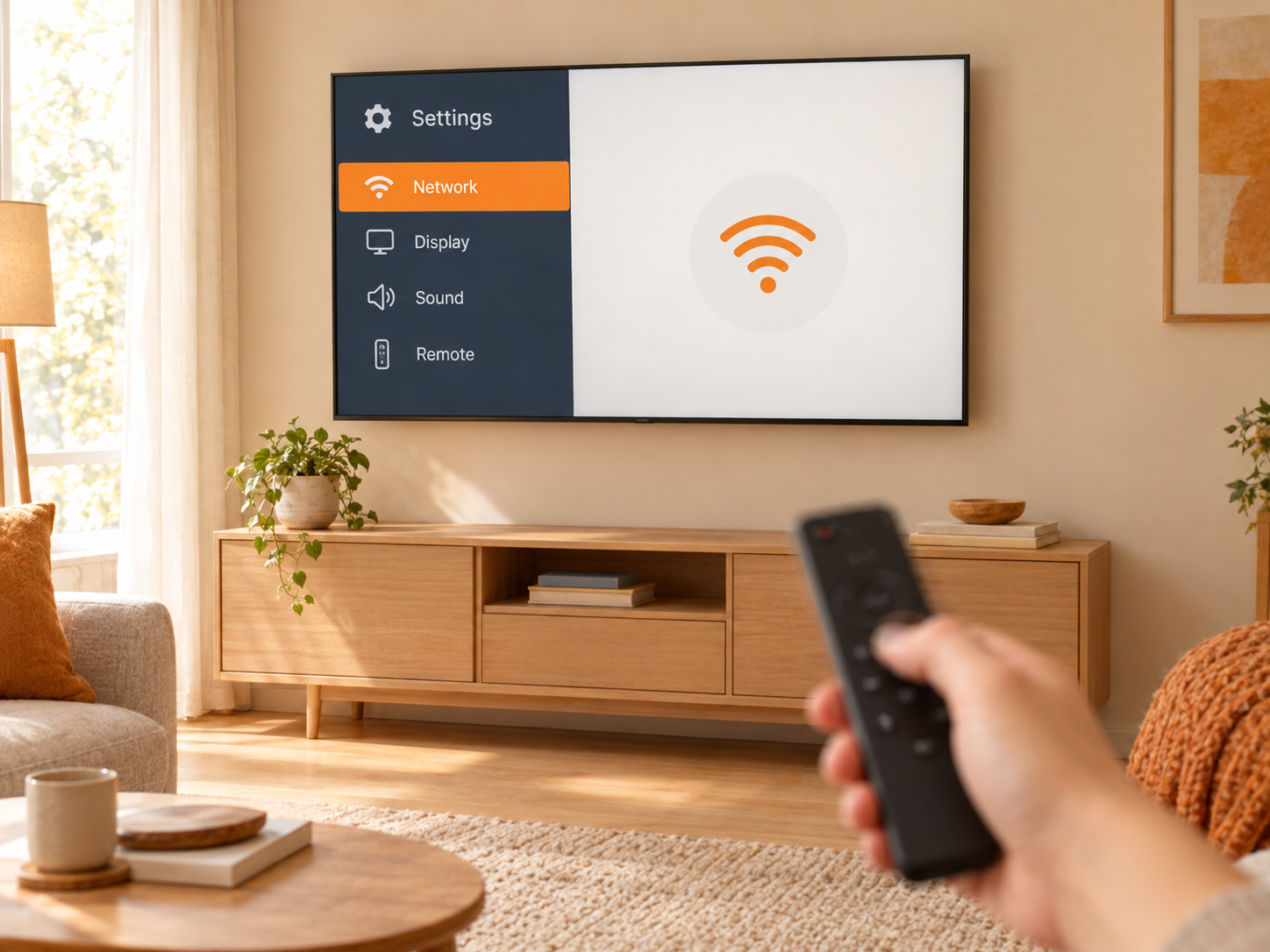
Gathering a few things first can save time during setup.
Your Wi-Fi network name and password, or an Ethernet cable if your TV supports a wired connection.
The email address and password for any streaming service you plan to use.
Some apps ask you to finish signing in on another device using a short code.
Fresh batteries in the remote help avoid connection and response issues.
The exact screens differ by brand, but most TVs and streaming devices follow a similar order.
Plug in the power cable. For a streaming device, connect it to an HDMI port and choose that input on your TV.
Follow the on-screen setup to select your Wi-Fi network and enter the password.
Let the device install any available software updates. This can take several minutes.
Launch the streaming app you want to use. Some show a sign-in screen; others display a short code.
If a code appears, enter it on the service's own website using your phone or computer, then sign in.
Once signed in, you can set up profiles and adjust picture, sound, and accessibility options.
Basic infrared remotes usually work as soon as batteries are inserted. Bluetooth or voice remotes often need to be paired once through the device's settings.
Here is what to expect from the most common types of equipment. Menu names vary by model.
These plug into an HDMI port and need their own power. Make sure the TV is on the matching HDMI input before starting setup.
Apps are built in or available from the TV's app store. Network, update, and account options are usually under Settings.
Streaming apps can be downloaded from the console's store. Sign-in typically uses your account details or a short code.
Most setup problems have simple causes. Start with the basics below before trying a full reset.
| What you see | Possible cause | What to check |
|---|---|---|
| "No Signal" message | TV is on the wrong input | Use the Input or Source button to select the HDMI port your device is connected to. |
| Sign-in code doesn't work | Code has expired or was mistyped | Request a new code from the app and enter it promptly. |
| Video keeps pausing | Weak or slow internet | Restart your router, or move the router closer to the TV. |
| Remote doesn't respond | Low batteries or not paired | Replace the batteries, then repeat the pairing steps. |
| No sound | Muted or wrong audio output | Check the volume, mute setting, and audio output in Settings. |
| Screen freezes | Temporary software issue | Unplug the device for about a minute, then plug it back in. |
A few simple habits help protect your accounts and personal information.
Enter sign-in codes only on the streaming service's own website. Double-check the address before typing.
Setting up a device or signing in to an app usually costs nothing. Subscriptions are billed directly by the service.
Don't share passwords or give remote computer access to anyone who contacts you unexpectedly.
Codes usually expire after a short time. Make sure it was entered exactly as shown, or request a new one from the app.
It usually means the TV is set to an input with nothing connected. Select the HDMI input your device uses and confirm it has power.
Replace the batteries, restart the device, and try pairing again while holding the remote close. Your device manual lists the exact steps.
Many TV and streaming brands offer an official remote app. Your phone and TV generally need to be on the same Wi-Fi network.
Setup itself is normally free. Streaming services may charge a subscription, which is billed directly by that service.
Requirements vary by service and video quality. Higher resolutions such as 4K need a faster connection. Each service publishes its own recommendations.
Only after restarting, updating, and checking connections haven't helped. A reset removes your apps and settings.
You can email us at info@tvactivationhub.online with feedback or corrections about this guide. For account or device support, please contact your manufacturer or service provider.
No matching questions found.
TVActivationHub is written for anyone setting up a TV or streaming device at home. It covers general steps that apply to most equipment. For model-specific instructions, account questions, or repairs, your device manual and the manufacturer's official support pages are the best sources.
TVActivationHub is an independent, informational website that publishes plain-language guides on setting up televisions, streaming devices, and remote controls at home.
We review our content regularly and welcome corrections. If you notice something outdated or unclear, please let us know.
Have feedback, a correction, or a question about our content? We'd be glad to hear from you.
TVActivationHub is an independent website and cannot access, manage, or fix your accounts or devices. For account, billing, warranty, or device-specific support, please contact the manufacturer or service provider directly through their official website.
Last updated: October 2026
This Privacy Policy explains how TVActivationHub ("we," "us," or "our") collects, uses, and protects information when you visit tvactivationhub.online.
We may use cookies and third-party analytics services. You can disable cookies in your browser settings, though some features may not work as intended.
If we display advertising, third-party vendors may use cookies to show ads based on your visits to this and other websites. You can manage ad personalization through your browser or the ad provider's settings.
We do not sell, rent, or trade your personal information. We may share data only with service providers who help operate the site, or when required by law.
We will never ask for your device passwords, account passwords, payment card details, or remote access to your devices.
We keep personal information only as long as needed for the purposes above and use reasonable measures to protect it. No online method is completely secure.
Depending on where you live, you may have the right to access, correct, delete, or restrict the use of your personal information. To make a request, email us.
This website is not directed to children under 13, and we do not knowingly collect their personal information.
Our site may link to other websites. We are not responsible for their content or privacy practices.
We may update this policy from time to time. The latest version will always be posted here with the updated date.
Last updated: October 2026
By accessing or using tvactivationhub.online, you agree to these Terms of Use. If you do not agree, please do not use the website.
TVActivationHub is an independent informational website. We are not affiliated with, endorsed by, sponsored by, or officially connected to any TV manufacturer, streaming device company, streaming service, or content provider.
All content is provided for general educational purposes. Steps, menus, and features vary by device model, region, and software version and may change without notice.
We do not provide official customer support. For account, billing, subscription, warranty, or repair matters, please contact the manufacturer or service provider directly.
We do not charge for activation, sell activation codes, or request remote access to your devices. If anyone claiming to represent us asks for payment or access, do not proceed and email us.
All brand names, product names, and trademarks belong to their respective owners and are used for identification only.
The original text, design, and layout of this website belong to TVActivationHub. You may share links to our pages but may not copy or republish content without permission.
You agree not to misuse the website, attempt to disrupt it, gain unauthorized access, or use it for any unlawful purpose.
You are responsible for following your device's official instructions and safety guidance when making any changes.
We may update these Terms of Use at any time. Continued use of the site means you accept the updated terms.
Last updated: October 2026
These Terms & Conditions apply to all visitors and users of tvactivationhub.online, together with our Terms of Use and Privacy Policy.
By using this website, you confirm that you have read, understood, and agree to these Terms & Conditions.
We try to keep content accurate and current, but we make no guarantees about its completeness, reliability, or suitability for your specific device or situation.
The website and its content are provided "as is" and "as available," without warranties of any kind, express or implied.
To the fullest extent permitted by law, TVActivationHub is not liable for any direct, indirect, incidental, or consequential damages, including device malfunction, data loss, service interruption, or account issues, arising from your use of this website.
Links to third-party websites are provided for convenience only. We do not control and are not responsible for their content, policies, products, or services.
You agree to hold TVActivationHub harmless from any claims arising from your misuse of the website or violation of these terms.
These terms are governed by the laws of the jurisdiction in which TVActivationHub operates, without regard to conflict-of-law principles.
If any part of these terms is found unenforceable, the remaining provisions will continue in full effect.
We may revise these Terms & Conditions at any time. The current version is always available on this website.
Last updated: October 2026
TVActivationHub is an independently owned and operated informational website. We are not affiliated with, authorized by, endorsed by, or in any way officially connected to any television manufacturer, streaming device maker, streaming platform, cable or satellite provider, or content owner.
All product names, logos, brands, and trademarks mentioned on this site are the property of their respective owners. They are used for identification and reference purposes only, and their use does not imply any affiliation or endorsement.
We do not provide official technical support, sell activation services or codes, charge activation fees, or request remote access to any device. For official help, please visit the manufacturer's or service provider's official website.
The information on this website is general guidance and may not apply to every device, model, region, or software version. Use it at your own discretion and always follow your device's official instructions.
Any external links are provided for convenience. We do not guarantee the accuracy or availability of third-party content.